
Quick take
- What changed: Salesforce Winter ’27 introduces the Service Reps component in Command Center for Service V2. It gives supervisors a consolidated, live view of their reps, according to the Winter ’27 release note on monitoring service reps.
- Who qualifies: orgs with Enhanced Omni-Channel and Command Center for Service V2 enabled. V2 is turned on through Salesforce, then enabled in Supervisor Settings. It isn’t on by default, and eligibility depends on your org.
- What supervisors can do: see presence, capacity, workload, queues, skills, and flags in one place. Where permissions allow, they can also act, for example by updating presence or adjusting queues and skills.
The business problem: work you can’t see is hard to balance
Picture a fictional support team of 24 reps across two regions, covering three queues: billing, technical support, and onboarding. Some reps handle chat and messaging, others mostly cases. At any moment, a few are available, several are busy, and a couple are on break.
When a supervisor has to piece this together from team chat, separate reports, and individual consoles, simple questions take too long. Who has room for another conversation? Which queue is short of people with the right skills? Is that rep with four active chats overloaded, or handling quick ones? By the time the picture is assembled, the moment to rebalance has passed, and escalations become reactive.
Salesforce has offered supervisor tools for some time. The Winter ’27 change brings these signals together in a single component designed for Command Center for Service V2.
What’s new: the Service Reps component for Command Center V2
The Salesforce Winter ’27 Service Reps component is a consolidated supervisor view. Salesforce’s guidance on tracking reps in Command Center and the Service Reps component field reference describe two distinct parts:
- Data: what supervisors see about each rep in their scope.
- Actions: what supervisors can do, which depends on permissions and configuration.
| Signal | Supervisor question | Practical use |
|---|---|---|
| Presence | Who is online and able to take work right now? | Check coverage before and during peaks |
| Capacity | Who is stretched, and who has open capacity? | Spot imbalance between reps |
| Assigned work | What is each rep handling? | See workload, not just headcount |
| Channels | Which channels is each rep working? | Understand where demand is landing |
| Queues and skills | Who can help with this type of work? | Find reps who are eligible to take overflow |
| Flags | Who has asked for help? | Prioritize support for reps on live work |
| Recent activity | What has this rep worked on recently? | Add context before stepping in |
Visibility is scoped. Each supervisor sees the reps defined by their supervisor configuration and Public Groups, not the whole org.
Before vs after: an illustrative working model
This compares working patterns. It doesn’t suggest other Salesforce interfaces lack supervisor tools.
| Task | Fragmented view | With the Service Reps component |
|---|---|---|
| Checking who’s available | Team messages and individual status checks | Live presence for every rep in scope |
| Judging workload | Separate reports and consoles | Capacity and assigned work side by side |
| Finding help for a queue | Asking around for the right skills | Queue and skill membership in the same view |
| Acting | Requests to admins or ad hoc workarounds | Actions that policy and permissions allow |
How it fits together
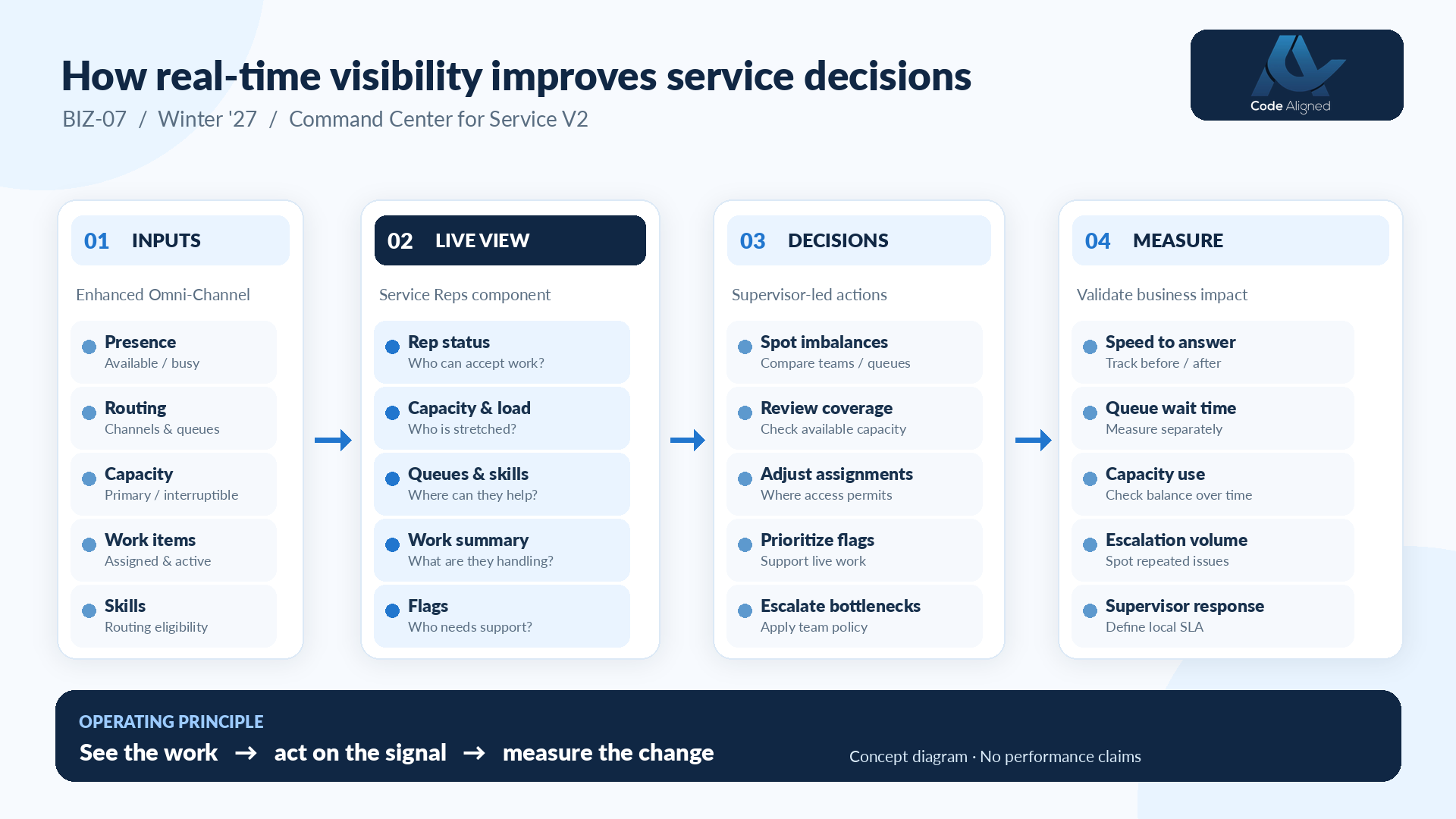
- Enhanced Omni-Channel and routed work. Presence, routing by channel and queue, capacity, assigned work items, and skills come from your Omni-Channel setup.
- Service Reps consolidated view. The V2 component shows rep status, capacity and load, queues and skills, a work summary, and flags.
- Supervisor actions allowed by configuration. Supervisors spot imbalances, review coverage, adjust assignments where access permits, respond to flags, and escalate bottlenecks under team policy.
- Independent measurement. Speed to answer, queue wait time, capacity use, escalations, and supervisor response are measured separately, through reports, backlog components, or dashboards.
A midday-spike scenario
This is a hypothetical scenario. It describes no real organization or measured result.
At 12:30, messaging demand for the billing queue jumps after an invoice reminder goes out. The supervisor opens the Service Reps component and observes that:
- Several billing reps are at or near capacity, each handling multiple active conversations.
- Two onboarding reps are online with open capacity, and one has billing skills.
- One billing rep has raised a flag on a difficult conversation.
Before acting, the supervisor checks two things: whether the onboarding reps’ own queue is quiet enough to share them, and whether team policy allows temporary queue or skill changes. If the supervisor has permission, they add the billing-skilled onboarding rep to the billing queue for the afternoon and respond to the flag. Routing then follows Omni-Channel rules. The component doesn’t move work by itself.
If demand keeps rising, or the change would leave onboarding uncovered, the supervisor escalates to the operations lead rather than improvising.
Step-by-step setup checklist
These steps follow Salesforce’s supervisor setup and Command Center components documentation. Use them for exact screens and labels.
- Check contract and edition suitability for your org with Salesforce.
- Confirm Enhanced Omni-Channel is in use.
- Contact Salesforce to enable Command Center for Service V2.
- Enable V2 in Supervisor Settings.
- Grant permissions: Access Command Center for Service V2 to supervisors and admins, and Customize Application only to authorized page builders.
- Set Supervisor Configuration and scope visibility through Public Groups.
- Open Lightning App Builder and open, clone, or create the V2 page.
- Place the Service Reps component.
- Configure displayed columns and approved actions, such as presence updates, queue and skill changes, or configured Screen Flows.
- Save and activate the page.
- Confirm data and visibility by signing in with a real supervisor account.
Conversation monitoring is separate
If supervisors need to monitor conversations, that requires additional settings, including Conversation Monitoring. Plan it as its own decision, with privacy and consent review.
Governance and security
- Least privilege. Grant Access Command Center for Service V2 only to people who supervise, and Customize Application only to page builders.
- Supervisor group scoping. Use supervisor configuration and Public Groups so each supervisor sees their own team.
- Role-based change authorization. Decide which roles may change presence, queues, or skills, and enable only those actions.
- Guardrails for queue and skill edits. Agree when temporary changes are allowed, who reverts them, and how they’re recorded.
- Coaching, not micromanagement. Live visibility is for supporting reps and balancing work. Tell your team how it will be used.
- Review cadence. Review access, actions, and policy regularly, for example monthly.
- Accessibility. Check that supervisors who use assistive technology can work with the page.
Measurement plan
If data is available, capture one to two weeks of baseline KPIs before rollout. Afterwards, compare by queue and channel, allow for seasonal demand, and avoid claiming the component caused any change on its own.
| KPI | Owner | Data source | Cadence | Caution |
|---|---|---|---|---|
| Average speed to answer | Head of Support | Omni-Channel reports or dashboards | Weekly | Sensitive to demand spikes; compare like-for-like periods |
| Queue backlog wait time | Service supervisor | Separate backlog reporting or components | Daily, then weekly | Not shown by the Service Reps component |
| Capacity utilization | Operations leader | Omni-Channel reports | Weekly | High isn’t always good; watch for burnout |
| Coverage by queue | Service supervisor | Reports on presence and queue membership | Weekly | Depends on accurate queue and skill data |
| Escalations | Head of Support | Case or escalation reports | Weekly | Many causes besides supervision |
Go-live test scenarios
Recommended scenarios to run before rollout:
- Presence states shown correctly as reps go online, away, busy, and offline
- Capacity updates as work is accepted and closed
- Active work reflects current assignments
- Queue and skill membership matches setup
- Raised flags appear for the right supervisor
- Supervisors only see reps in their scope
- Presence can’t be changed for an offline rep
- An unauthorized user is denied access
- Screen reader and mobile layout, where supported
Who benefits
| Role | Decisions it informs |
|---|---|
| Head of Support | Whether staffing and skills match demand across queues and channels |
| Service supervisor | Who to support, where to add coverage, and when to escalate during the day |
| Salesforce admin | Which permissions, scopes, and actions to enable, and how to keep them governed |
| Operations leader | Which recurring imbalances need process, routing, or hiring changes |
Limits and misconceptions
- Dependencies. It needs Enhanced Omni-Channel and Command Center for Service V2.
- Org-specific availability. Licensing and eligibility vary, so confirm with Salesforce.
- Only configured actions. Supervisors can do only what permissions and page configuration allow.
- Visibility isn’t optimization. Real-time visibility doesn’t redistribute work, staff teams, or guarantee better SLA results.
- Not historical analytics. Trends and KPIs need reports, backlog components, or dashboards.
- Not the legacy tab. The V2 Service Reps component is different from the Service Reps tab in the earlier Command Center.
- Routing models differ. What you see, and what actions make sense, can vary with how your Omni-Channel routing is set up.
Frequently asked questions
Is the Service Reps component available in all Salesforce editions?
Don’t assume so. Salesforce describes it for orgs with Enhanced Omni-Channel and Command Center for Service V2 enabled. Edition, contract, and licensing eligibility need to be checked for your specific org.
How do we activate it?
Contact Salesforce to enable Command Center for Service V2, then enable V2 in Supervisor Settings. After that, an authorized user adds the Service Reps component to a Command Center for Service V2 page in Lightning App Builder and activates the page.
Which permissions are needed?
Supervisors and admins need the Access Command Center for Service V2 permission to view it. Configuring Lightning pages requires Customize Application. What each supervisor sees is scoped by supervisor configuration and Public Groups.
Can a supervisor change queue or skill assignments?
Depending on permissions and configuration, supervisors can take actions such as updating a rep’s presence status (only while the rep is online), changing queues or skills, and running configured Screen Flows. Not every action is available in every org.
Does it automatically redistribute cases?
No. The component gives supervisors visibility and, where permitted, actions they choose to take. It doesn’t rebalance work, make staffing decisions, or apply AI to routing by itself. Routing still follows your Omni-Channel configuration.
Can we monitor conversations?
Conversation monitoring needs additional settings, including Conversation Monitoring, and isn’t automatically available. Review Salesforce’s supervisor setup documentation and your privacy and consent obligations before turning it on.
Is this a replacement for Omni-Channel reporting?
No. The component is a live operational view, not full historical analytics. KPIs such as speed to answer, backlog wait time, and trends still come from reports, backlog components, or dashboards.
Official Salesforce sources
Product behavior in this article is based on the following Salesforce documentation. Confirm current details for your org before you implement.