Quick answer
The Backlog component, new in Salesforce Winter ’27, is a Command Center for Service V2 component. It shows supervisors work waiting to be routed across queue-based, skills-based, and direct-to-agent routing, with details such as priority, routing method, and wait time. It provides visibility. It doesn’t predict, prevent, or reassign anything by itself.
Imagine your customer support team receives hundreds of requests every day. While representatives are busy resolving assigned cases, dozens of other requests remain unassigned. Some need specialized skills. Others are high-priority cases waiting for the next available rep.
By the time a customer complains or an SLA is breached, the operational problem may already have existed for hours. That’s the gap Salesforce Service Cloud backlog management is meant to close, and the Winter ’27 Backlog component makes that waiting work much easier to see.
What’s new in Salesforce Winter ’27
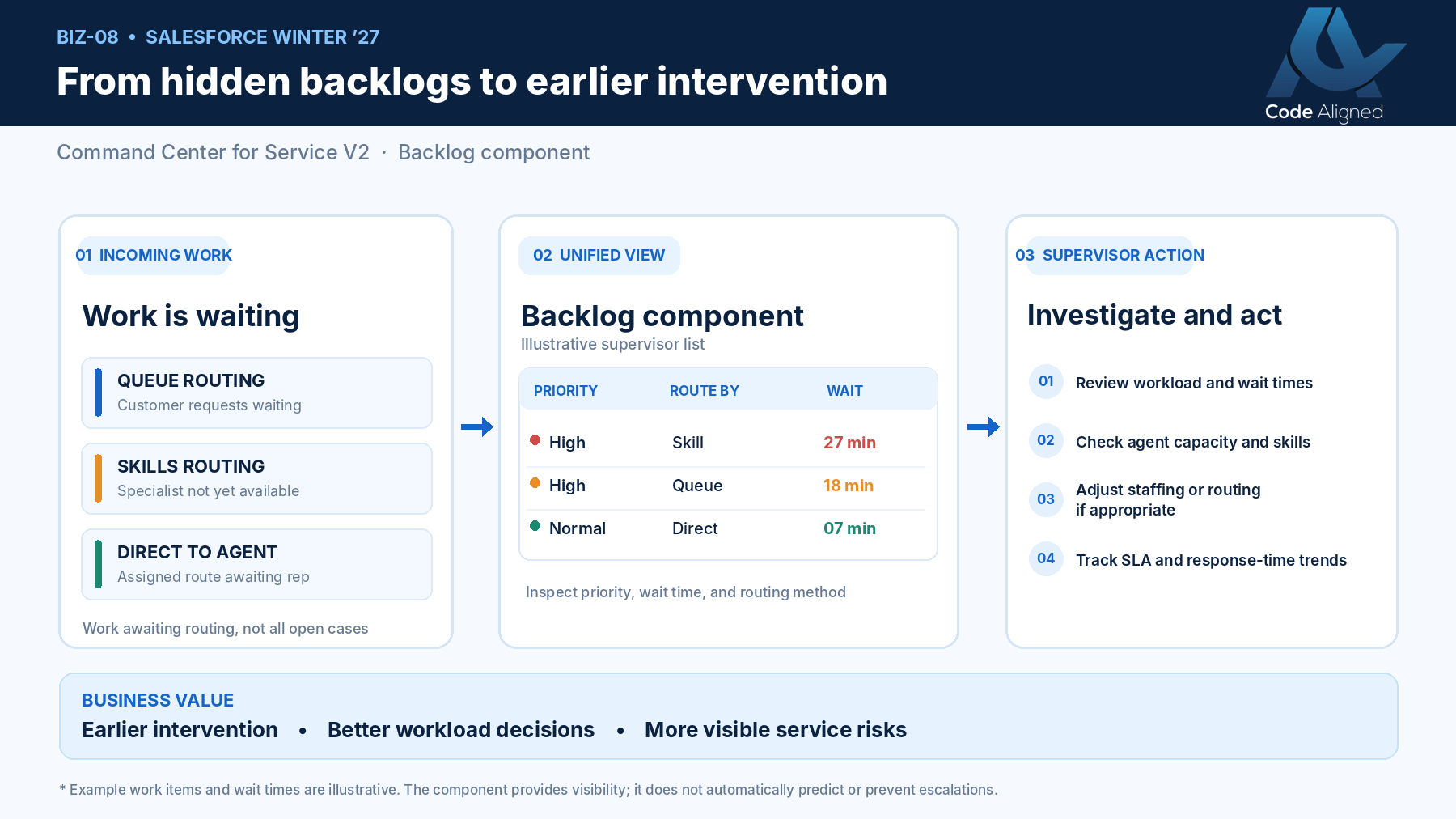
According to the Winter ’27 release note for the Backlog component, Salesforce adds a Backlog Lightning App Builder component to Command Center for Service V2. In plain terms, it’s one list of work waiting to be routed to your service reps, covering all three routing methods:
- Queue-based routing: requests waiting in queues
- Skills-based routing: requests waiting for a rep with the right skills
- Direct-to-agent routing: requests routed to a specific rep who hasn’t received them yet
The Backlog component field reference describes the information it can display, including work item priority, channel or work object type, routing method, wait time, requested time, work size, and work item details. Exactly which columns and actions appear depends on configuration.
For a supervisor, three of these answer the most urgent questions. Priority shows what matters most. Wait time shows what’s aging. Routing method shows why it might be stuck: a skills-routed item that keeps waiting points to a skills or capacity gap, not just a busy queue.
How the Salesforce Backlog component works
Requests enter through your channels. Omni-Channel routes them according to your queue, skills, or direct-to-agent setup. Work that can’t be assigned yet waits, and that waiting work appears in the Backlog component. The supervisor investigates the cause and decides what to do.
The last two stages are human. What a supervisor can actually change depends on their permissions, the component’s configured actions, and your operating processes.
Before vs after: customer support backlog visibility
These are illustrative workflow improvements, not guaranteed results.
| Operational challenge | Without consolidated backlog visibility | With the Backlog component |
|---|---|---|
| Identifying aging requests | Requires checking multiple operational views | Consolidated waiting-work view |
| Investigating routing delays | May require separate queue or skills analysis | Routing method visible in context |
| Reviewing high-priority requests | Difficult to prioritize across dispersed views | Priority information can be displayed |
| Supervisor intervention | Often reactive | Better opportunity for earlier investigation |
| Workload planning | Fragmented operational insights | More informed staffing and routing decisions |
Practical business example: a growing customer support backlog
This scenario is fictional, and all numbers are illustrative. It describes no real organization or measured result.
A mid-sized support organization uses Salesforce Service Cloud and Enhanced Omni-Channel. During a busy afternoon, 45 customer requests are waiting for assignment. Twelve need specialized skills, eight are marked high priority, and several have been waiting longer than the team’s internal threshold. Here’s how the supervisor works through it:
- Review the consolidated backlog in the Backlog component instead of checking queues one by one.
- Identify high-priority and aging work by sorting on priority and wait time.
- Examine routing methods and skill requirements. Most of the oldest high-priority items are skills-routed and need the same specialist skill.
- Investigate capacity and routing bottlenecks with the right tools. Using rep and capacity views, the supervisor finds that only two reps with that skill are online, and both are at capacity.
- Coordinate changes where authorized, for example by asking a qualified rep to come online, adjusting skill assignments under team policy, or flagging the gap to the routing owner.
- Monitor whether the backlog improves, watching wait times for those items over the next hour.
The Backlog component made the problem visible. The supervisor did the investigating and acting. The component doesn’t carry out these steps automatically.
Five business benefits of better backlog visibility
These are potential benefits. They depend on how teams use the information.
1. Earlier identification of delayed requests
Supervisors can spot waiting work before the problem becomes harder to manage, rather than after a complaint.
2. Better support resource planning
Recurring backlog patterns by routing method and skill give staffing and scheduling decisions a factual basis.
3. Improved prioritization
Seeing priority alongside wait time helps supervisors focus on the requests that matter most.
4. Opportunities to improve SLA performance
Assignment delays often contribute to SLA risk. Seeing them earlier creates an opportunity to investigate, though it doesn’t guarantee better compliance.
5. More effective service operations
Supervisors and managers share one operational view of waiting work, which makes handovers and reviews more consistent.
How to enable the Backlog component in Salesforce
Based on Salesforce’s Backlog component setup documentation. The requirements are Enhanced Omni-Channel, Command Center for Service V2, the Access Command Center for Service V2 permission for supervisors and admins who view it, and Customize Application for admins who configure Lightning pages.
- Verify Enhanced Omni-Channel is configured.
- Verify Command Center for Service V2 is available and enabled for your org.
- Enable the required supervisor functionality in Supervisor Settings.
- Grant the appropriate Command Center permissions.
- Open Lightning App Builder.
- Open the appropriate Command Center for Service V2 page, or create a supported custom page.
- Add the Backlog component.
- Configure the available columns and actions.
- Save and activate the page.
- Validate access, visibility, and routing behavior with representative test records.
Final steps can depend on your org and page setup. Check supported editions, licensing, and org enablement against Salesforce’s documentation before planning a rollout.
Best practices for Salesforce Service Cloud teams
These are recommended management practices, not native component automation:
- Define internal backlog aging thresholds by priority
- Review high-priority waiting requests at set intervals
- Check that required skills match staff availability by shift
- Review queue and capacity configurations regularly
- Set escalation procedures for prolonged waits
- Validate supervisor access and data visibility
- Test routing changes in a sandbox first
- Use a consistent supervisor review routine
How to measure business impact
Measure a baseline before rollout and compare the same measures afterward for similar periods. Several of these KPIs need Salesforce reports, analytics, or extra data collection beyond the Backlog component itself.
| KPI | What it measures | Decision it supports | Beyond the component? |
|---|---|---|---|
| Waiting work items | How many items are waiting for routing right now | Whether to add coverage now | Live count in the component; trends need reports |
| Average wait for assignment | Typical time before work is assigned | Staffing and schedule planning | Yes, reports or analytics |
| 90th-percentile wait time | How long the slowest requests wait | Fixing the worst experiences, not just the average | Yes, analytics |
| Share over internal threshold | Percentage of requests waiting longer than your target | Where escalation procedures are needed | Yes, reports with your threshold |
| SLA compliance rate | Share of milestones met | Whether contract commitments are at risk | Yes, entitlement reporting |
| First-response time | Time from request to first response | Customer experience at the start of contact | Yes, reports |
| Escalated requests | Number of customer escalations | Whether earlier intervention is helping | Yes, case or escalation reports |
Allow for changes in demand when comparing. A quieter month can look like an improvement that has nothing to do with backlog monitoring.
Important implementation considerations
Three things that sound similar but aren’t the same:
- A case owned by a queue: a record whose owner is a queue.
- An Omni-Channel work item eligible for routing: work that Omni-Channel is trying to assign.
- A work item visible in the routing backlog: what the Backlog component shows.
Because routing eligibility and state affect visibility, the number of queue-owned records and the number of items in the Omni-Channel backlog may not match. Explain this to supervisors early, before someone reports a “missing” case.
- Permissions: grant view and configuration rights separately and sparingly.
- Licensing and availability: confirm for your org; don’t assume universal access.
- Routing configuration: the backlog reflects your routing setup, including its flaws.
- Capacity and skills: wrong capacity or skill data produces misleading backlogs.
- Testing: validate with test records for each routing method.
- Supervisor training: teach people what the columns mean and what they’re allowed to change.
- Data interpretation: a wait time is a symptom. Investigate before acting.
How Code Aligned can help
The Backlog component is only as useful as the routing, skills, and capacity setup behind it. Code Aligned works with service teams on:
- Service Cloud architecture review
- Enhanced Omni-Channel setup
- Queue and skills-based routing optimization
- Command Center configuration
- Salesforce automation and Apex customization
- Service analytics and reporting
- Custom integration development
- Ongoing Salesforce optimization
Learn more about our Service Cloud consulting and implementation, Salesforce integration, and Salesforce managed services.
Frequently asked questions
What is the Backlog component in Salesforce Winter ’27?
It’s a Lightning App Builder component for Command Center for Service V2. It gives supervisors a consolidated view of work waiting to be routed to service reps, across queue-based, skills-based, and direct-to-agent routing.
Does the component automatically prevent customer escalations?
No. It provides visibility into waiting work. It doesn’t predict escalations, send alerts, reassign work, or prevent SLA violations. Those outcomes depend on what supervisors do with the information and on any separately implemented automation.
What is Command Center for Service V2?
It’s the newer version of Salesforce’s supervisor workspace for Omni-Channel, built from Lightning App Builder components such as Backlog. It must be available and enabled for your org.
Is Enhanced Omni-Channel required?
Yes. The Backlog component requires Enhanced Omni-Channel and Command Center for Service V2.
Can supervisors see work waiting for skills-based routing?
Yes. The component covers work waiting in queue-based, skills-based, and direct-to-agent routing. The columns shown depend on how the component is configured.
What permissions are required?
Supervisors and admins who view the component need the Access Command Center for Service V2 permission. Admins who configure Lightning pages need the Customize Application permission.
Does the component replace Salesforce reports and dashboards?
No. It shows the current backlog. Trends and KPIs such as percentile wait times, SLA compliance, and escalation counts still need reports, analytics, or dashboards.
How can businesses measure improvements after implementing backlog monitoring?
Record a baseline before rollout, such as average and 90th-percentile wait time for assignment, the share of requests over your internal thresholds, and SLA compliance. Then compare the same measures afterward for similar periods, allowing for changes in demand.
Final thoughts
Backlogs rarely appear without warning. They build quietly in queues, skills gaps, and busy afternoons. The Winter ’27 Backlog component replaces fragmented monitoring with one view of waiting work. What happens next still depends on your routing design, staffing, and supervisor routines, but now you can see the problem while there’s still time to act.