
The problem: your CRM shows the pipeline, not the next move
Most Salesforce orgs give sellers plenty of visibility: list views, dashboards, forecast categories, and pipeline reports. What they rarely give is direction. Each morning a seller still has to work out which of forty open deals needs attention today, and why.
That is the gap between reporting visibility and in-workflow action. A dashboard shows that eight high-value opportunities have gone quiet. Someone then has to notice it, open each record, decide what to do, and remember to do it. Every step depends on attention and habit, and that is where good intentions get lost in a busy week.
Sales signals close that gap by putting a specific, timely prompt in front of the seller where they already work. Until now, the signals Salesforce provided followed its own logic. Winter ’27 lets you add signals based on yours.
What’s new in Winter ’27: custom signals in Sales Workspace
According to the Winter ’27 release note for Show Custom Signals, organizations can now add their own recommendations to the Sales Workspace signals feed:
- Business logic or AI reasoning. You decide what should trigger a signal. A rule-based signal doesn’t require AI to be enabled.
- Recommendations written through Flow or Apex. Your configured process writes recommendation records, which appear as signals.
- An action attached to each signal. You associate an action with the signal definition, then activate it.
- Actions in the prioritized feed. Sellers act from the feed itself. Available action types include platform actions and agent quick actions, as described in Salesforce Help’s guide to choosing the action for a custom signal.
This isn’t automatic
Custom signals require admin setup. Nothing appears in the feed until a signal type is defined, a generating process is configured, an action is chosen, and the definition is activated. Sales Workspace must also be set up and assigned to users.
Before vs after: from dashboard review to guided action
This is a conceptual comparison of working patterns, not a measured outcome.
| Step | Before: manual prioritization | After: custom signals |
|---|---|---|
| Spotting the issue | Seller or manager reviews dashboards and list views | A business rule you define identifies the situation |
| Context | Seller opens records to work out why it matters | Signal wording explains the reason in the seller’s feed |
| Next step | Seller decides what to do and remembers to do it | One action button attached to the signal |
| Consistency | Varies by seller, manager, and week | The same rule applies to every qualifying record |
| Learning | Hard to tell which prompts led to action | Reporting shows how often signals are acted on or dismissed |
Three illustrative use cases
These are proposals to adapt, not built-in Salesforce rules. Thresholds, wording, and owners should come from your own sales process.
| Stalled high-value deal | Renewal at risk | Quiet strategic account | |
|---|---|---|---|
| Trigger & data needs | Open opportunity above your value threshold with no activity for 14 days. Needs reliable Amount and activity logging. | Renewal opportunity closing soon while the account has open, unresolved Cases. Needs Cases linked to the right account. | Account flagged as strategic with no logged engagement in a set period. Needs a maintained tier field and activity capture. |
| Signal wording | “No activity in 14 days on a high-value deal. Re-engage before momentum fades.” | “Renewal approaching with open service issues. Check status with Support before your next call.” | “No recent engagement with a strategic account. Plan a check-in.” |
| Recommended action | Log a call or schedule a follow-up | Review the open Cases | Create a follow-up task |
| Business owner | Sales manager | Account manager with Customer Success | Strategic account lead |
| KPI | Action rate; days the deal stays inactive | Time from signal to documented follow-up | Share of strategic accounts with recent engagement |
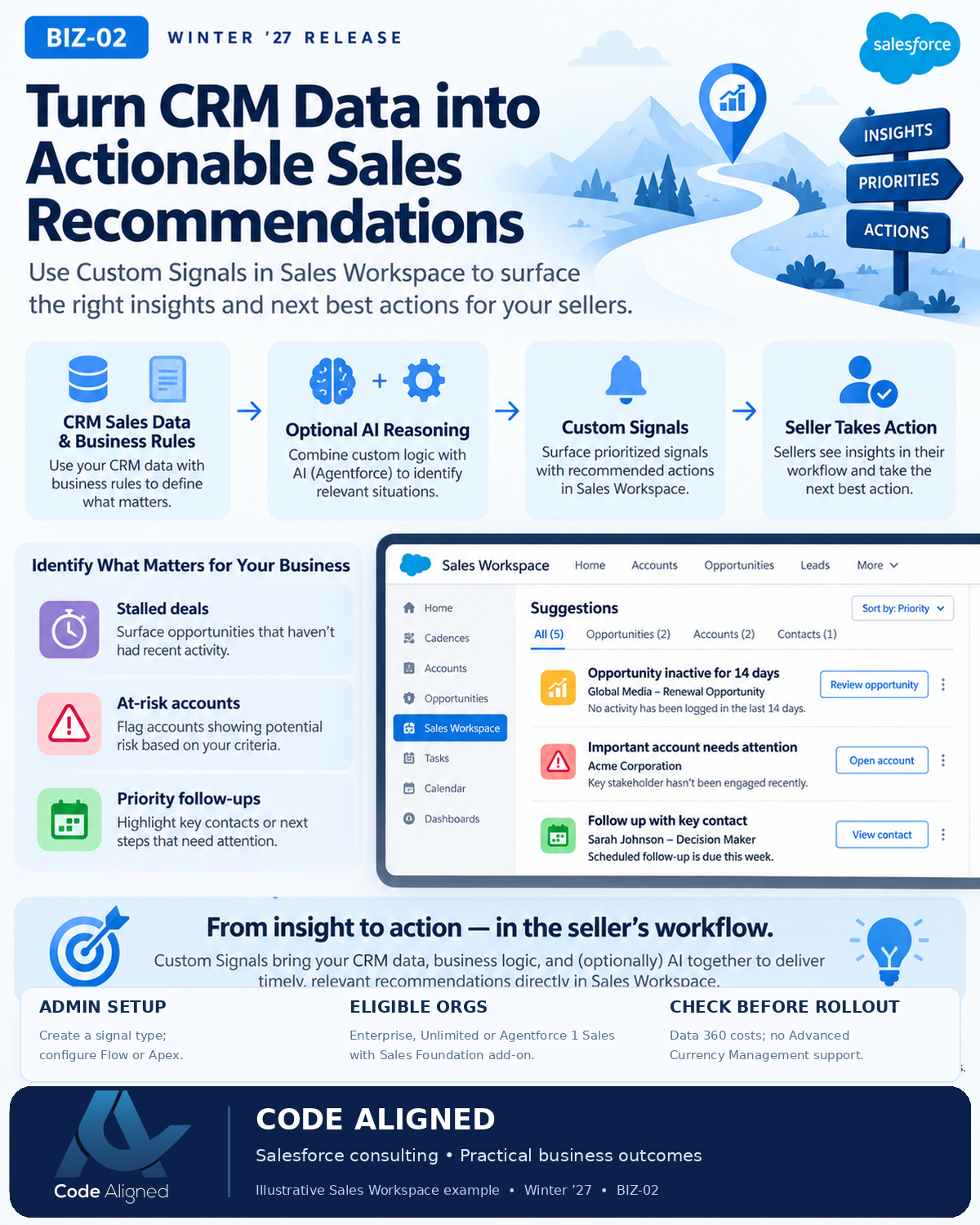
Implementation walkthrough
Menu names below follow Salesforce Help. For exact configuration steps, use the linked articles, because your org’s setup and entitlements will shape the details.
1. Prepare
- Assess prerequisites. Confirm Lightning Experience in Enterprise, Unlimited, or Agentforce 1 Sales edition with the Sales Foundation add-on, subject to your org’s entitlements. Check whether Advanced Currency Management is enabled, because Sales Workspace isn’t supported with it.
- Enable Data 360 and Sales Workspace. Follow Set Up Sales Workspace and assign it to the sellers in scope.
- Define the outcome and owner. For each signal, write down the business problem, the triggering rule, the expected seller action, and who owns the signal’s quality.
2. Build
- Create the signal type. In Setup, go to Workspace Signals and use Create Signal Types, as described in Show Your Own Signals.
- Clone the right Flow template. Use Create Custom Recommendations for standard actions or Create Custom Recommendations with Action for custom actions. Clone and configure it before you activate it.
- Configure the logic and the action. Add your business rule and how often recommendations are created, then attach a standard action, platform action, or agent quick action.
3. Pilot and refine
- Test with a small seller pilot. Confirm signals appear for the right people, the action works, and users can open the underlying records.
- Plan cleanup. Make sure recommendations that no longer apply are cleared, so the feed doesn’t fill with stale signals.
- Monitor acceptance and dismissal, then refine thresholds with the business owner before rolling out more widely.
How the pieces fit together
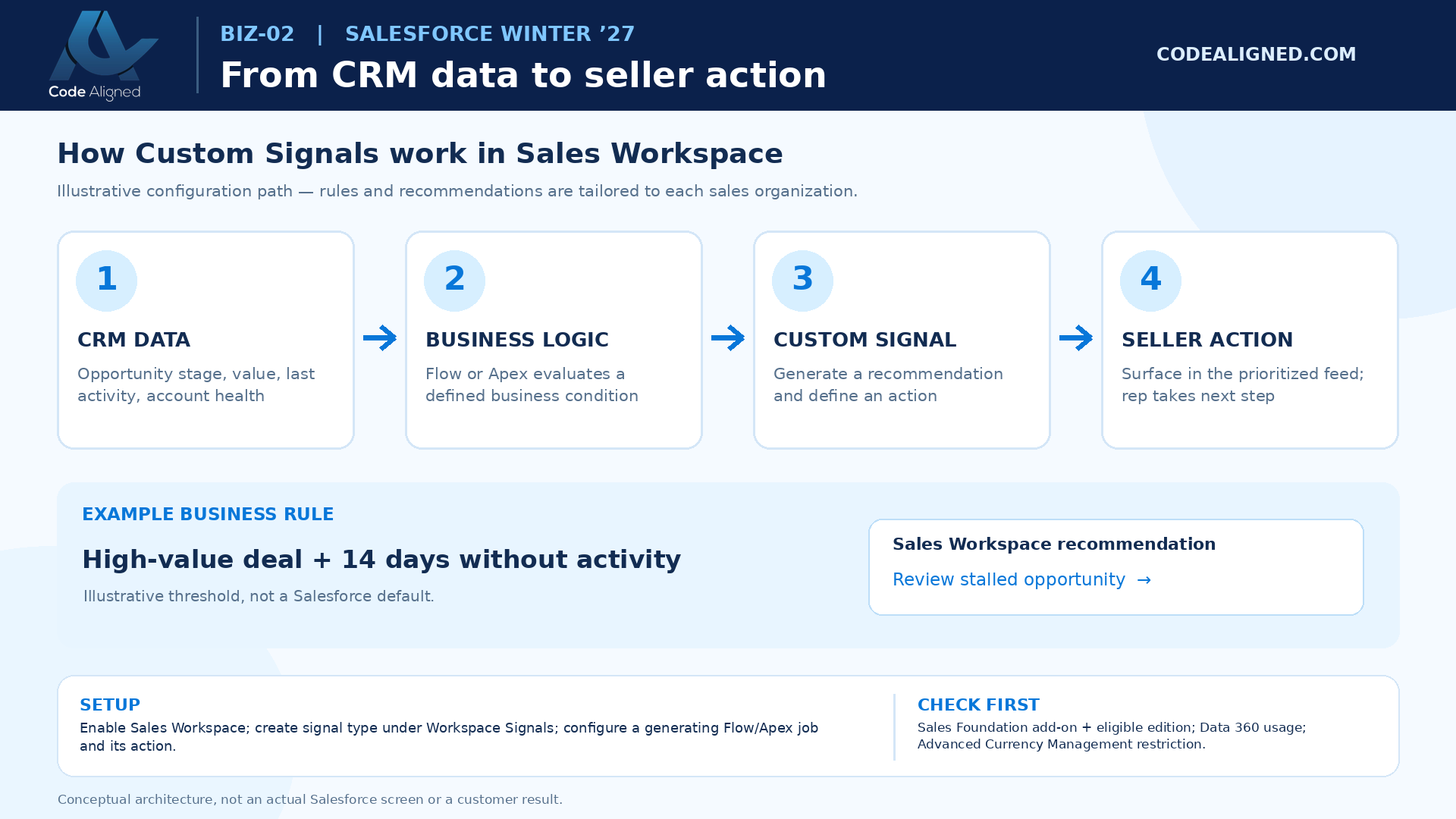
- CRM and related data: opportunities, accounts, activities, Cases, and other records your rule depends on.
- Business rule: Flow or Apex logic, or an optional agent, decides when a situation qualifies.
- Custom recommendation: the process writes a recommendation record for each qualifying item.
- Sales Workspace signals feed: each recommendation appears as one feed item with one action button.
- Seller action: the seller acts on the signal or dismisses it.
- Feedback and reporting: action and dismissal data shows which signals deserve tuning, keeping, or retiring.
A practical qualifying SOQL example
For the stalled-deal use case, a query like this identifies candidate opportunities: open, above a value threshold, and with no activity, or none in the last 14 days.
SOQL · illustrative
SELECT Id, Name, AccountId, OwnerId, Amount, StageName,
       CloseDate, LastActivityDate
FROM Opportunity
WHERE IsClosed = false
  AND Amount >= 100000
  AND (LastActivityDate = null
       OR LastActivityDate < LAST_N_DAYS:14)
ORDER BY Amount DESC
LIMIT 200
Tune 100000 and LAST_N_DAYS:14 with the signal’s business owner. In Apex, use bind variables so thresholds aren’t hard-coded. In multi-currency orgs, remember that Amount is stored in each record’s currency.
Finding candidates isn’t creating signals
This query only finds records that qualify. It doesn’t create Sales Workspace recommendations. That step belongs to your configured signal-generation process, typically a cloned Salesforce Flow template, following Salesforce Help.
Measurement plan
Set a baseline before launch, name an owner for each measure, and review the numbers at a fixed interval. We don’t publish benchmarks here because what counts as good depends on your process.
- Signal creation volume: per signal type and per seller, to spot rules that are too loose or too tight
- Action rate: share of signals sellers act on
- Dismissal rate: a high rate usually means poor timing, wording, or thresholds
- Action-to-follow-up lag: time from signal to the documented follow-up
- Stalled-opportunity aging: how long qualifying deals stay inactive, compared with your baseline
Action and dismissal come from native signals reporting: build custom report types on Prioritized Recommendations and the related Prioritized Recommendation Items. Lag and aging usually need additional custom analytics joined to activity and opportunity data.
Limitations, costs, and governance
Before committing, review Salesforce’s Sales Workspace considerations alongside these points:
- Licensing: eligible editions with the Sales Foundation add-on, subject to your org’s entitlements.
- Data 360 costs: Sales Workspace uses Data 360, and costs may increase with frequent updates. Choose how often to refresh signals deliberately.
- Advanced Currency Management: Sales Workspace isn’t supported when it’s enabled.
- One record per signal: each custom signal maps one recommendation to one feed item. Grouped, multi-record signals aren’t supported, so design wording around a single record.
- One action button: each custom-signal feed item has one action. A specific feed record’s action can override the definition’s default.
- Permissions and privacy: users need access to the underlying records, and the signal’s wording shouldn’t reveal information a user isn’t permitted to see.
- Suppression and deduplication: stop the same situation from producing repeated signals, and clean up stale ones.
- Reporting history: Winter ’27 notes a 90-day retention period for signal activity reporting. Export or snapshot data if you need longer trends.
Frequently asked questions
Is AI required for custom signals?
No. Salesforce’s Winter ’27 release notes say organizations can use business logic or AI reasoning. A rule-based signal that writes recommendations through Flow or Apex doesn’t need AI to be enabled. The usual eligibility and Sales Workspace prerequisites still apply.
Can the rules come from Apex instead of Flow?
Yes. The release notes describe writing recommendation records with Flow or Apex. Salesforce Help recommends starting from its Flow templates, Create Custom Recommendations or Create Custom Recommendations with Action, which suit most teams and are easier to maintain.
Does it work without admin configuration?
No. Custom signals are not automatic. An admin sets up and assigns Sales Workspace, creates signal types in Setup under Workspace Signals, configures the generating flow or Apex and its action, and activates the signal definition.
How do we know if our signals are useful?
Build custom report types on Prioritized Recommendations and the related Prioritized Recommendation Items to compare how often sellers act on or dismiss each signal. Reporting users need access to those objects, and signal activity is kept for 90 days, so export or snapshot anything you need longer.
Official Salesforce sources
Product behavior in this article is based on the following Salesforce documentation. Check it for current rollout and edition details before you implement.
- Winter ’27 release note: Show Custom Signals in Sales Workspace
- Show Your Own Signals: creating signal types in Workspace Signals
- Flow template for custom recommendations with standard actions
- Flow template for custom recommendations with custom actions
- Choosing the action for a custom signal
- Setting up Sales Workspace
- Sales Workspace considerations, including Data 360 and currency limits
- Reporting on signal performance